Daily check-in of code is not optional for professional developers. There may be a rare circumstance where this is not the case, and such exceptions must be approved by the technical lead on the project on a daily basis.
An increment of work should seldom take longer than a day. All code that does not break the build should be checked in prior to leaving work for the day.
Code should be checked in each and every time it successfully builds and passes basic functional testing.
You should know the status of your own in-progress code at all times. If you don’t, then you cannot probably manage source control and the application is at risk for both difficult defects and issues during integration testing.
…the implied cost of additional rework caused by choosing an easy (limited) solution now instead of using a better approach that would take longer. (https://en.wikipedia.org/wiki/Technical_debt)
the original cause of some tech debt is a combination of optimism and ego while following a best practice that should be expanded on. The best practice is to always keep code in source control to preserve work product in the event of hardware failure or accidental deletion (or the proverbial bus accident/lottery fortune).
The expansion this practice requires to truly be best is to use either a repository naming convention or a branch naming convention to indicate that source is the first iteration. The lack of this naming convention for initial commits leads to acceptance and defensiveness of early approaches that will often benefit from major refactoring if not complete abandonment.
Developers frequently avoid major refactoring for many reasons. In mature systems it can be a very real risk to do so and should be approached cautiously. However, the dislike of refactoring often impacts very early work where such changes can (and should) be done with ease.
Whether it is ego, optimism, laziness, deadline pressure, or a combination of any or all of the common factors, using naming conventions that make it clear that refactoring or replacement is expected will help to prevent early tech debt that will likely worsen over time.
The next level is to maintain and architecture decision log for the repository and require an entry to that log for any first iteration commits to reach a status where the code will be deployed. Reviewing these decisions periodically will help identify both intentional (assuming an exception log as well) and unintentional technical debt.
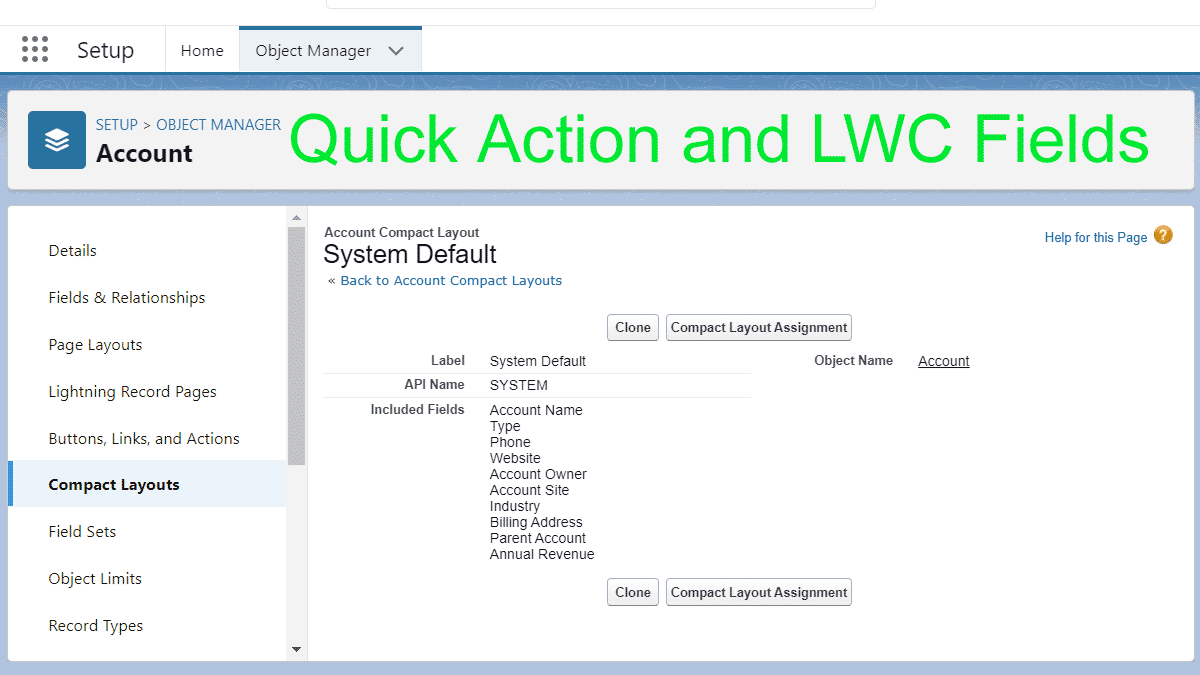
A frequent question on Trailhead for new admins and developers is how to edit the fields displayed in quick actions, global actions, and Lightning components. Most of the time these fields are managed through the Compact Layout for an object.
From there you can clone the default layout and create your own. Required fields must have a value for the action to work, though these fields can be left off if they have default values or there is a before action that sets the value.
The upside to modern PCs is that so many file associations are created for us automatically. This is offset to a degree because the default setting in Windows is to hide file extensions, so that what you see is just the name and an icon. This is especially problematic for CSV files as most people who use Windows have Excel and since the friendly green icon is fronting the file the habit to just click it prevails.
Sometimes, this association is fine. Simple text data delimited with commas or tabs can be converted to Excel format with no manual intervention and everything looks fine. But, if any of the fields have commas, or are dates or numbers, than Excel makes lots of assumptions that it doesn’t tell you about and changes the data to match the assumptions. One does not need to be a data scientist to know this is bad. Indeed, one only needs a pulse to be annoyed by it, and if you don’t know why the data is being messed up, frustration is a common reaction.
The first thing I recommend is to change your Window settings to show file extensions. There are instructions provided by Microsoft for this here.
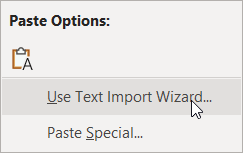
Next, develop the habit of opening CSV files using one of the more time-consuming (and reliable) methods. Method 1 is to open the CSV file in a text editor (my personal preference is EditPad, and there is a good list of others here). Then create a new Excel workbook or sheet, copy the contents of the CSV file from the text editor and use the Paste > Use Text Import Wizard option.
Use Text Import Wizard paste option
The simplest approach is to accept the defaults on the first two steps and on the third step select all columns by holding the Shift key, scrolling to the right and click the last column, and choose the Text column format.
Text Import Wizard Step 3 select all columns and Text format
This will create a clean separation by column with no auto-formatting applied. Then Finish and you will have the data as you expected.
For larger files, I suggest reading this thread on SuperUser.com.
When creating data in Excel for CSV upload, format all the columns as Text before saving as CSV. If you have to do the same data transforms regularly, I recommend creating a template with formulas.
Probably the hardest habit of all for most users to adopt is when opening the file in Excel just to view its contents is to select No when prompted to save the changes.