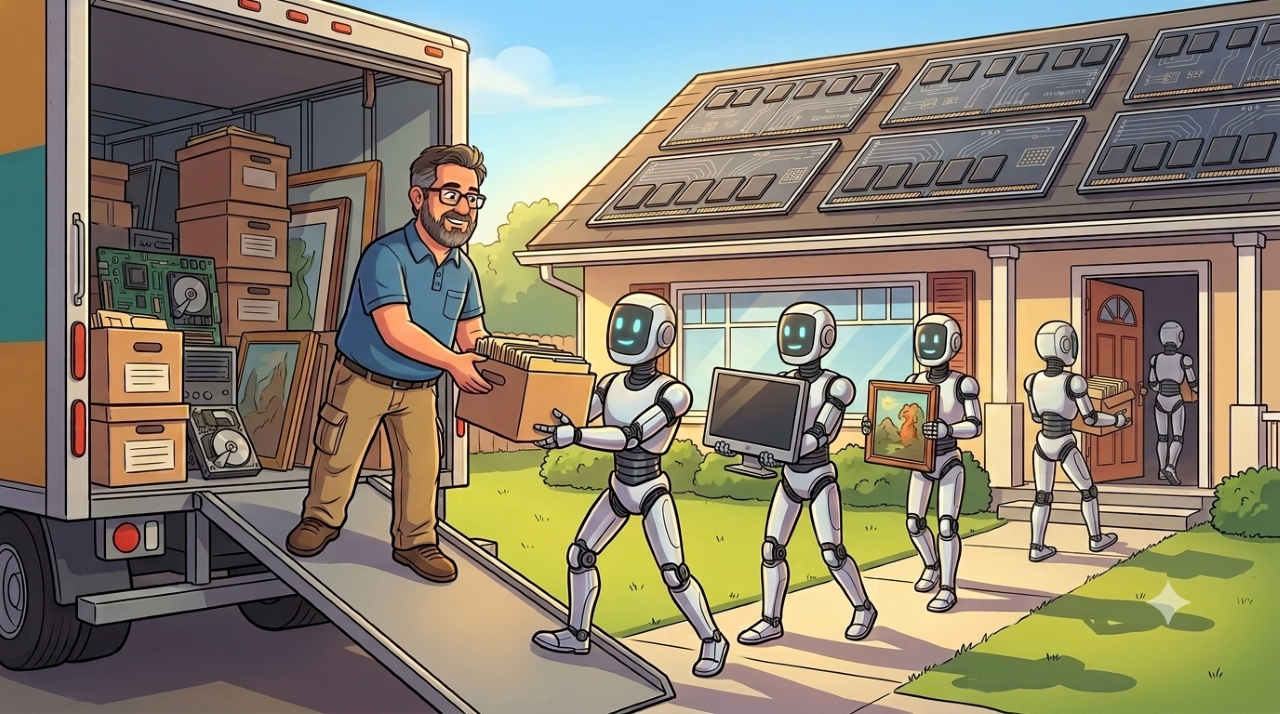
TL;DR: Copying your project folders to a new laptop moves the files and leaves the work behind. Everything Claude Desktop actually remembers, your Cowork sessions, your MCP connector config, your Claude Code settings, lives in a Windows package sandbox that a normal search will never find. Zip that folder with the app closed and your history comes with you. Skip it and you start over with a very clean, very empty sidebar
The problem with writing about technology is that things change continuously. I was thinking of turning this into an Explainer video on YouTube but remember to check if it was still current first…and it wasn’t. So I created a follow up that should keep this relevant by using it as a baseline and updating from there. So please be sure to read How Claude Can Help You Move Claude to Your New PC before following the instructions from this post.
Cheers! -Scott S Nelson
New Laptop Day
New laptop day is supposed to be a good day. Copy the projects, sign in, get back to work.
For most non-developers it generally is pretty straightforward, especially if your company manages backups and you use defaults. Sign in, wait for the sync icon to stop spinning, open the same three apps you always open. Whatever you’d customized was mostly customized inside something that follows your account, so it follows your account.
For developers and other power users it has never been that straightforward. There are a million little tweaks accumulated over years for personal preference and productivity, and not one of them is written down anywhere. The PATH entry you added at 11pm to make a build work. The tool installed from a zip file into a folder you invented. The config that lives three levels below AppData because that’s where the installer decided to put it. You don’t have a list. You have a vague sense that something will be missing, and you find out which something at the worst possible moment, usually about four days later.
Thanks to the popularity of Claude, now everyone gets those extra steps. And they’re not that straightforward even for the power users.
Here’s how it goes wrong. You copy the project folders. OneDrive handles the synced ones, a USB drive handles the local-only ones, file counts check out, you spot-check a few documents and nothing’s corrupted. Install Claude Desktop, sign in, open Cowork.
Empty.
The files are all there. The work is not. Every session, every bit of accumulated context, every conversation where you finally got Claude to understand your codebase, none of it came along. Because none of that lives in the project folder. It lives somewhere else entirely, and the app gives you no indication where.
Worth sorting out before you wipe the old machine, which is the point of no return most people hit about an hour after they think they’re done.
Two Kinds of Sessions, Only One of Which Is Your Problem
Some good news first. Cowork sessions now run remotely and are tied to your Claude account rather than your hardware. Sign into a new machine and those sessions are already there, waiting, automagically. Nothing to move, nothing to find. For once, the defaults crowd wins outright.
The catch is that this only holds for sessions created after remote sessions shipped. Anything older is a local artifact sitting on the old hard drive. If you’ve been using Cowork for a while, that’s likely most of your history.
So the question isn’t whether to migrate. It’s whether your sessions predate the cutover.
If none of them do, close the tab and enjoy the new laptop. Although before you go, it’s worth a moment’s honest reflection: if you’ve been at this for a while and have nothing accumulated that’s worth the trouble of moving, that’s telling you something. Not about the migration. About how much of Claude you’re actually using. A tool you’ve spent months teaching your projects, your standards, and your preferences to is a different tool than one you open to write emails. If none of this applies to you, the interesting question isn’t how to migrate. It’s what you’ve been leaving on the table.
For everyone else, keep reading.
Where It Actually Lives
Ask Claude where its own session data lives on Windows and it will tell you %APPDATA%\Claude\local-agent-mode-sessions\. It will tell you this confidently. Community migration tooling references the same path, so it isn’t inventing it from nothing.
It isn’t there.
Nor is it at %LOCALAPPDATA%\Claude\, which is the natural second guess and the next thing you’ll be told to try. You can run a recursive search across your entire user profile for audit.jsonl, the conversation log written inside every Cowork session, and get nothing back at all. That result is disorienting enough that you start to wonder whether the sessions ever existed on disk in the first place.
Whether that documented path was ever correct on Windows, or whether it’s a Mac convention that got generalized, isn’t something I can tell you. What matters is that on a current Windows install it’s a dead end, and it’s the dead end you’ll be pointed at first.
The real reason is architectural. Claude Desktop installs as a packaged Windows app, and packaged apps get their own private storage sandbox. Writes to the conventional locations get quietly redirected somewhere like this:
C:\Users\<username>\AppData\Local\Packages\Claude_<packageid>\LocalCache\Roaming\Claude\
Note the shape of that path. It ends in Roaming\Claude, exactly as documented. It’s just sitting under a package container that no reasonable person would think to check, which is why searching for the documented path fails while the documented path is, in a sense, still accurate.
The package ID is a short string of characters, and there’s no reason to guess at yours. Find it:
Get-ChildItem -Path $env:APPDATA, $env:LOCALAPPDATA, $env:USERPROFILE -Recurse -Filter "*claude*" -ErrorAction SilentlyContinue |
  Where-Object { $_.PSIsContainer } |
  Select-Object FullName |
  Out-File "$env:USERPROFILE\Desktop\claude-folders.txt"
That writes every Claude-related folder on the machine to your desktop. Open the file, look for the one containing local-agent-mode-sessions, and you have your real path. Two notes: run it in PowerShell, not Command Prompt, and expect it to take a minute or two while it walks the profile.
Depending on how and when Claude was installed, your data may genuinely sit in the plain %APPDATA%\Claude\ path. Both are possible. The one holding session subfolders with long UUID-style names is the one that matters. Don’t assume, check.
Claude Will Help You Move, and You Don’t Even Need to Buy It a Pizza Afterwards
Here’s the part that’s mildly funny in hindsight: the way to find all of this is to ask Claude, in Cowork, on the machine you’re migrating away from. It has shell access to the profile it’s running in. Point it at the problem and it will run the searches, read what comes back, and narrow the path down with you.
It will also send you to those two wrong folders on the way there, because the documented path and the actual path aren’t the same thing, and the documented path is what it reaches for first. That’s not a knock. It’s the ordinary pattern of working with these tools, and the fix is the same as always: make it show you the output rather than accept the summary. The searches above came out of exactly that back and forth. Claude proposed, the filesystem disagreed, and the third attempt found it.
Which is the useful lesson here, more than the folder path. The tool is genuinely good at the mechanical part, walking a filesystem, reading a directory listing, writing the PowerShell you’d otherwise be looking up. It is not reliable about where things live, because that’s a fact about your specific install and not something it can know from training. Use it for the legwork. Verify the destination yourself.
What to Copy and What to Leave
Open that Claude folder and you’ll find far more than sessions. Most of it is cache, crash logs, GPU state, and machine-specific scratch that regenerates on its own. Copying it doesn’t help and can actively cause conflicts.
Bring these:
local-agent-mode-sessionsis the whole reason you’re here. Your Cowork session history.claude_desktop_config.jsonholds your MCP server configuration. Lose it and every connector gets set up again from scratch. This is the one people don’t realize they needed until it’s gone.claude-codeandclaude-code-vmcarry Claude Code settings and VM data, if you use it.vm_bundlesfor Claude Code VM bundles.ChromeNativeHostfor the Claude in Chrome integration.config.jsonandcowork-enabled-cli-ops.jsonfor general app and Cowork settings.git-worktrees.jsonif you run Claude Code against git worktrees.pending-uploadsif anything is sitting in it.
Leave IndexedDB alone. It stores app state tied to your current signed-in session, and the new machine builds its own. Overwriting it invites problems you’ll spend an evening diagnosing.
Also grab C:\Users\<username>\.claude\ on the old machine. That’s a separate folder outside the sandbox, holding configuration and skills, and it goes to the same place on the new profile.
Zip It on the Old Machine
Rather than dragging ten items across a USB drive and hoping you got them all, package them once. Quit Claude Desktop completely first. Not the window, the app. Right-click the tray icon and choose Exit. Zipping live data files is how you end up with a corrupted history and no idea why.
Then, in PowerShell, substitute your own package ID into the first line and run this:
$Claude = "$env:LOCALAPPDATA\Packages\Claude_<packageid>\LocalCache\Roaming\Claude"

$Items = @(
  "local-agent-mode-sessions",
  "claude-code",
  "claude-code-vm",
  "vm_bundles",
  "ChromeNativeHost",
  "pending-uploads",
  "claude_desktop_config.json",
  "config.json",
  "cowork-enabled-cli-ops.json",
  "git-worktrees.json"
) | ForEach-Object { Join-Path $Claude $_ } | Where-Object { Test-Path $_ }

Compress-Archive -Path $Items -DestinationPath "$env:USERPROFILE\Desktop\claude-migration.zip" -CompressionLevel Optimal
The Where-Object { Test-Path $_ } line quietly skips anything you don’t have, so you can run it as-is whether or not you use Claude Code.
One detail that makes the other end easy: the archive stores paths relative to the items you named, not their full absolute paths. local-agent-mode-sessions\ and config.json land at the root of the zip. The archive is effectively a snapshot of the Claude folder itself, which means unpacking it is a single step with nothing to rearrange.
Then package the profile folder separately, since it lives elsewhere:
Compress-Archive -Path "$env:USERPROFILE\.claude" -DestinationPath "$env:USERPROFILE\Desktop\claude-dotfolder.zip"
Two zips on your desktop. Move them however you like: USB drive, OneDrive, network share.
If Compress-Archive throws a path-length error, that’s the 260-character Windows limit biting, and it’s plausible here given how deep the sandbox path already runs before your session UUIDs even start. Enable long paths in Windows, or fall back to robocopy with the /E switch to stage the folders somewhere shallow like C:\ClaudeMigration\ first, then zip from there.
Unzip It on the New Machine
- Install Claude Desktop, sign in, and open Cowork once. This creates the directory structure you’re about to unpack into. Then quit completely again.
- Find the package path on this machine. Run the same
Get-ChildItemsearch from earlier. The package ID can differ between installs, so confirm rather than assume. - Unpack straight into the Claude folder. Because the archive is relative to that folder, everything lands where it belongs on its own:
$Target = "$env:LOCALAPPDATA\Packages\Claude_<packageid>\LocalCache\Roaming\Claude"

Expand-Archive -Path "$env:USERPROFILE\Desktop\claude-migration.zip" `
               -DestinationPath $Target -Force
-Force overwrites files that already exist and leaves everything else untouched. The only collisions are the config files the fresh install generated a minute ago, and replacing those with yours is the entire point.
- Restore the profile folder:
Expand-Archive -Path "$env:USERPROFILE\Desktop\claude-dotfolder.zip" `
               -DestinationPath "$env:USERPROFILE" -Force
- Restart Claude Desktop. Your old sessions should appear in the sidebar.
- Reconnect your workspace folders. These are machine-specific paths and won’t follow you. Copy your project files first, then point Cowork at their new locations.
- Reinstall plugins that rely on local MCP servers. Cloud-only plugins come across with your account.
- Keep the old machine intact until you’ve verified all of it. Open a few migrated sessions, confirm your connectors work, and only then wipe.
The Same-Account Assumption
Everything above assumes one thing that’s easy to overlook: the Windows username is identical on both machines. When it is, every path inside those session files still resolves and the unpack just works.
When it isn’t, you have a problem the zip won’t solve. Sessions store absolute local paths, so C:\Users\OldName\Documents\... follows you onto a machine where no such user exists. The files arrive fine. The references inside them point at nothing.
If your usernames differ, this is the one case that needs an extra stop. Unpack to a scratch folder instead of straight into the target, run a find-and-replace across the JSON and JSONL files inside the extracted sessions to swap the old profile path for the new one, verify a single session opens correctly, and only then copy the corrected folders into place. Apply the same scrutiny if anything else moved, a different drive letter, a relocated Documents folder, OneDrive redirection that was on before and off now. Any of those breaks the same assumption in the same way.
Setting expectations honestly here: migrated sessions may land as readable history rather than fully resumable conversations. You get the record of what was discussed and decided, which is the part that took months to accumulate. Whether Cowork lets you pick up where you left off is a separate question, and one worth testing with a single session before you count on it for all of them.
With AI, Every How-To Has an Unknown Expiration Date
Everything above is a workaround for a design that’s already being replaced. That much is normal. What’s different now is that nobody can tell you when the replacement lands.
Software used to telegraph its changes. Version numbers, release notes, deprecation warnings, a beta period where the community wrote up what moved. A how-to written against version 4 stayed true until version 5, and version 5 announced itself. You could read a three-year-old post, check the version in the header, and know within seconds whether it still applied.
AI tools don’t work that way. They ship continuously, the client updates itself, and the thing you’re actually interacting with changes underneath a version number that may not move at all. Storage locations migrate. Local features become account features. The answer that was correct on Tuesday is wrong on Thursday, and nothing announces it. There’s no header to check.
Which is exactly what’s happening to this article. With sessions running remotely and tied to your account, the machine stops being where the work lives and becomes just a window onto it. Sign in anywhere and your history, your projects, and your scheduled tasks are already present. No folder to find, no zip to move, no package sandbox to go spelunking in. For anyone starting fresh today, this is already unnecessary.
That’s the right direction, and worth saying plainly rather than grumbling about the transition. Local-first storage bought you privacy and offline access at the cost of making your work a hostage to one piece of hardware. Account-first storage trades that the other way. Reasonable people weigh those differently, but nobody has ever been glad their context was trapped on a laptop with a failing battery.
The catch is the seam, and seams are always where the work is. Tools in transition leave a cohort stranded on the old model, holding data in a format the new model doesn’t automatically reach for. That cohort is anyone who adopted early, which is to say the people with the most accumulated context and the most to lose. Migration guides exist for the gap between what a tool used to be and what it’s becoming.
So treat this one, and every AI how-to you find, as perishable goods with no date stamped on the carton. Verify the path before you trust the instructions. If the folder isn’t where the article says it is, the article is probably older than the software. That will be true of this post eventually, and I can’t tell you when. Neither can anyone else. Until then, somebody has to move the boxes.
What This Actually Costs You
A little perspective on why any of us write these things down.
My first how-to post, back in 2002, was about building web services with Apache Axis. Working it out took the better part of two days: documentation that assumed you already knew the answer, examples that didn’t compile, and a long stretch of staring at a stack trace. The post that came out of it took a reader about twenty minutes. Two days of my confusion, compressed into twenty minutes of somebody else’s afternoon.
This one took about an hour of prompting and probing with Claude. It should take you fifteen minutes. Ten, if you run this post through an AI and ask it to strip out all my digressions, which I’d encourage, though I’d like it noted that the digressions are the part I enjoy.
The ratio held. It’s just faster on both ends now.
Fifteen minutes, then, against rebuilding context that took months to accumulate. That’s the entire calculation, and it’s the same calculation behind every unglamorous piece of groundwork in this business. Nobody gets excited about verifying a folder path. Everybody gets excited about the new laptop. The gap between those two feelings is where work disappears.
The broader lesson has nothing to do with Claude. Any tool you’ve spent real time training to your context is holding state somewhere, and “somewhere” is rarely where the marketing implies. Before you decommission a machine, ask what the tools on it know that the files don’t. Then go find out where they keep it.
Then wipe the old laptop. Not before.