Compact Layout

Where to edit Quick Action, Global Action, and most LWC field lists

A frequent question on Trailhead for new admins and developers is how to edit the fields displayed in quick actions, global actions, and Lightning components. Most of the time these fields are managed through the Compact Layout for an object.

From there you can clone the default layout and create your own. Required fields must have a value for the action to work, though these fields can be left off if they have default values or there is a before action that sets the value.

HTH

Compact Layout
Compact Layout
If you found this interesting, please share.

© Scott S. Nelson
Salesforce MVP Class of 2023 Nomination CSV, XLS, SFDC, Oh my!

CSV, Excel, and Salesforce

The upside to modern PCs is that so many file associations are created for us automatically. This is offset to a degree because the default setting in Windows is to hide file extensions, so that what you see is just the name and an icon. This is especially problematic for CSV files as most people who use Windows have Excel and since the friendly green icon is fronting the file the habit to just click it prevails.

Sometimes, this association is fine. Simple text data delimited with commas or tabs can be converted to Excel format with no manual intervention and everything looks fine. But, if any of the fields have commas, or are dates or numbers, than Excel makes lots of assumptions that it doesn’t tell you about and changes the data to match the assumptions. One does not need to be a data scientist to know this is bad. Indeed, one only needs a pulse to be annoyed by it, and if you don’t know why the data is being messed up, frustration is a common reaction.

The first thing I recommend is to change your Window settings to show file extensions. There are instructions provided by Microsoft for this here.

Next, develop the habit of opening CSV files using one of the more time-consuming (and reliable) methods. Method 1 is to open the CSV file in a text editor (my personal preference is EditPad, and there is a good list of others here). Then create a new Excel workbook or sheet, copy the contents of the CSV file from the text editor and use the Paste > Use Text Import Wizard option.

Use Text Import Wizard paste option

The simplest approach is to accept the defaults on the first two steps and on the third step select all columns by holding the Shift key, scrolling to the right and click the last column, and choose the Text column format.

Text Import Wizard Step 3 select all columns and Text format

This will create a clean separation by column with no auto-formatting applied. Then Finish and you will have the data as you expected.

For larger files, I suggest reading this thread on SuperUser.com.

When creating data in Excel for CSV upload, format all the columns as Text before saving as CSV.  If you have to do the same data transforms regularly, I recommend creating a template with formulas.

Probably the hardest habit of all for most users to adopt is when opening the file in Excel just to view its contents is to select No when prompted to save the changes.

If you found this interesting, please share.

© Scott S. Nelson
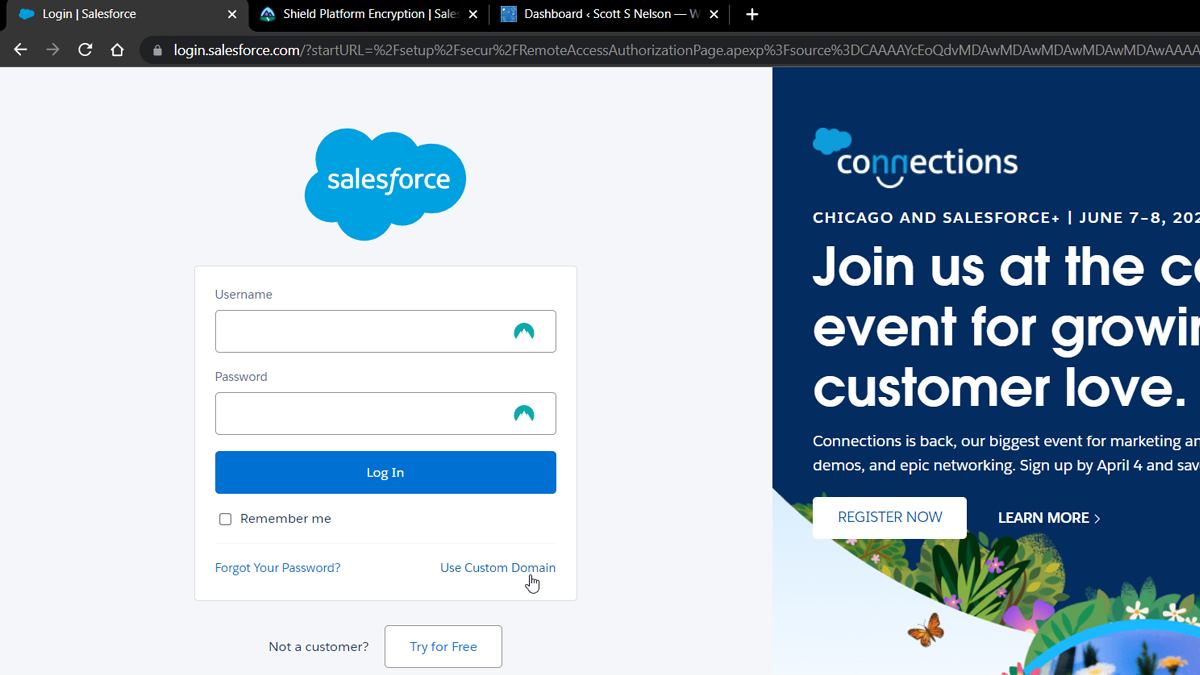
We can't display this page because your browser blocks cross-domain cookies, but you can view this page in Salesforce Classic. Click here to open this page in Salesforce Classic.

Salesforce Lightning Admin browser blocks cross-domain cookies use Classic

I see lots of other folks running into this and thought I would post the fix along with my thoughts. (TL;DR).

The error message is “We can’t display this page because your browser blocks cross-domain cookies, but you can view this page in Salesforce Classic. Click here to open this page in Salesforce Classic.” It can happen in several screens and is a result of some of the base domain changes that Salesforce has been making coupled with the security changes browsers have been making. For chromium-based browsers (Edge, Chrome, Brave, etc.) the fix is to add your domain to the cookie exception list.

With screens, the process go as follows:

Go to Settings > Privacy and security
Select Cookies and other site data
Under Sites that can always use cookies click the Add button
Paste your SFDC domain path in the Site dialog and Check Including third-party cookies on this site

Click the Add button and

Refresh your Salesforce screen [F5]
Tada!

Note: You could use a wildcard in place of the sub-domain for all salesforce domains, but I don’t recommend that as it would leave you vulnerable to some miscreants that use their orgs for nefarious purposes.

To summarize:

  1. Go to Settings > Privacy and security
  2. Select Cookies and other site data
  3. Under Sites that can always use cookies click the Add button
  4. Paste your sub-domain and domain path in the Site dialog
  5. Check Including third-party cookies on this site
  6. Click Add button
  7. Refresh your Salesforce screen [F5]
If you found this interesting, please share.

© Scott S. Nelson

Git on Ubuntu in Visual Studio Code

I found myself getting frustrated with Visual Studio Code (vsc) today on Ubuntu with GitHub. I had a repository that was properly cloned, yet vsc insisted that “The folder currently open doesn’t have a git repository”.

vsc init repo message

I installed the GitHub extension and confirmed my account was set in vsc and still no joy. Finally went to the terminal in vsc and ran git status and received the following:

fatal: detected dubious ownership in repository at '/media/sf_vm_share/notpublicrepo/vsc-projects/mytrailhead'
To add an exception for this directory, call:

        git config --global --add safe.directory /media/sf_vm_share/notpublicrepo/vsc-projects/mytrailhead

so I did as suggested and then there was:

VSC Commit Option

If you found this interesting, please share.

© Scott S. Nelson