I have always struggled with setting up a fresh Oracle 11g Database install. I have made copious notes over the years on the steps to take each time I tackle the process, and when I go back to the notes they only serves as clues to the mystery. This time I had to do the whole thing on a Linux both without the use of the GUI installers and I have captured and scripted the process once and for all.
Of course, most new installs these days will be 12c and should be performed by someone with deep database skills. This article is intended for those that simply need a database for a proof-of-concept or development environment where 11g will suffice.
Acknowledgements
Before I get into the details, I want to point out that there are three key blog posts that I found most useful in this process. They are:
Step-By-Step
These steps are based on using the scripts in this article. Feel free to adjust to fit your own needs, which is how this process came about.
As a side note, while putting the process together and again while documenting it, I used a VM and took a snapshot at the completion of each step to save time if some issue arose in a particular step. You will probably benefit from this as well, since small differences can prevent fully using these steps exactly as described.
Downloads
The Database installs can be found at http://www.oracle.com/technetwork/database/enterprise-edition/downloads/index.html. If you have access to MOS, you can get a slightly newer version, and you will only need to first two files.
Environment Variables
The values need to be set in the environment. You can place them in a bash script under /etc/profile.d for all users, or in the oracle user home directory if necessary. In the /etc/profile.d folder, be sure to chmod 644 to ensure it will run properly.
export DB_USER=oracle
export DB_PASS=welcome1
export DB_USER_HOME=/home/${DB_USER}
export ORACLE_HOSTNAME=${HOSTNAME}
export ORACLE_UNQNAME=MY11GDB
export ORACLE_BASE=/u01/app/oracle
export ORACLE_HOME=$ORACLE_BASE/product/11.2.0/db_1
export ORACLE_SID=MY11GDB
export LD_LIBRARY_PATH=${ORACLE_HOME}/lib:/lib:/usr/lib;
export TMP=/tmp
export APP_DIR=/u01/app
export PATH=/usr/sbin:/sbin:/bin:/usr/sbin:/usr/bin:${ORACLE_HOME}/bin
export CLASSPATH=${ORACLE_HOME}/jlib:${ORACLE_HOME}/rdbms/jlib;
export SOFTWARE_HOME=/media/sf_software
export SCRIPT_HOME=/media/sf_scripts
Regardless of where you place these values, be sure they are set before continuing and placed where they will always be set when administering to the database in the future. This may require either sourcing the file, or rebooting.
Script Variables
db_installprep.sh will set all variables except for the name of the install zip files as those can change over time. Update as necessary in install_11gDB.sh.
Install Prep Script
The script below performs the following tasks:
Creates User and Groups
The _create_groups function takes an inelegant approach to create the oracle user and groups. For those of you better versed in Linux administration, feel free to create your own script. Please share if you do.
Creates ORACLE_HOME path and Update SELinux
For reasons I can’t fathom, the installer will not create the ORACLE_HOME path, so it must be created before installing. Once installed, SELinux enforcement can cause problems with getting the listeners running. Since I only use the database behind a firewall, turning it off works best for me. I would not take that approach with a production server, though.
Dependency Installs
As noted in the Acknowledgements, there is a useful script for making sure the dependencies are in place.
Set Response File Variables
If you use the response files provided in the Downloads section, this will update the values to match your Environment Variables. If you are using your own or from a different source, comment out the _create_rsp_files function.
db_installprep.sh
#!/bin/bash
# Script based on instructions at http://dbaora.com/install-oracle-in-silent-mode-11g-release-2-11-2/
export INSTALL_DATE=`/bin/date "+%Y%m%d-%H-%M"`

function_logcomment()
{
 echo "#########################################################################################"
 echo -e "$(date +"%I:%M:%S"): $1"
 echo "#########################################################################################"
}

_check_user() {
# "Borrowed from" https://danielwestermann.com/2013/08/11/a-simple-script-to-automate-the-oracle-12c-setup/
    if [ $(id -un) != "${1}" ]; then
        _log "you must run this as ${1}"
        exit 0
    fi
}

_create_groups(){
	groupNames=( oinstall dba oper asmdba asmoper asmadmin )
	groupIds=( 54321 54322 54323 54327 54328 54329 )

	for index in "${!groupNames[@]}"
	do
		function_logcomment "adding group ${groupNames[index]}"
		groupadd ${groupNames[index]} -f -g ${groupIds[index]}
	done
#NOT THE MOST ELEGANT APPROACH...
	echo "Check for $DB_USER user"
	if [ ! id -u $DB_USER > /dev/null 2>&1 ]; then
	echo "Adding $DB_USER user"
		useradd -u 500 $DB_USER
		echo $DB_PASS | passwd $DB_USER --stdin
	fi

	for index in "${!groupNames[@]}"
	do
		echo "Adding $DB_USER user ${groupNames[index]} group"
		usermod -aG ${groupNames[index]} $DB_USER
	done
}

_pre_env_settings() {
	mkdir -p $ORACLE_HOME
	chown oracle:oinstall -R /u01
	sed -i 's#SELINUX=enforcing#SELINUX=disabled#g' /etc/selinux/config
}

_package_updates(){
	cd /etc/yum.repos.d
#	cp $SCRIPT_HOME/build/database/public-yum-ol6.repo .
	wget http://public-yum.oracle.com/public-yum-ol6.repo
	wait $!
	yum -y install oracle-rdbms-server-11gR2-preinstall
}

_create_rsp_files(){
	cd $SCRIPT_HOME/build/database
	filenames=( db_install.rsp dbca.rsp )

	for index in "${!filenames[@]}"
	do
		sed 's#@ORACLE_BASE@#'"$ORACLE_BASE"'#g ; s#@ORACLE_HOME@#'"$ORACLE_HOME"'#g ; s#@ORACLE_SID@#'"$ORACLE_SID"'#g ; s#@DB_PASS@#'"$DB_PASS"'#g' ${filenames[index]}.template > ${filenames[index]}
	done
}

_check_user "root"
wait $!
_create_groups 2>&1 | tee ${APP_DIR}/db11g_install.log
wait $!
_pre_env_settings 2>&1 | tee ${APP_DIR}/db11g_install.log
wait $!
_create_rsp_files
wait $!
_package_updates 2>&1 | tee ${APP_DIR}/db11g_install.log
echo "DB Install Prep Complete"
#wait $!
#https://danielwestermann.com/2013/08/11/a-simple-script-to-automate-the-oracle-12c-setup/
#suggests the following firewall changes but have been successful so far without
#systemctl stop firewalld
#systemctl disable firewalld
Install the Database
As noted earlier, be sure that the install zip file names are correct in install_11gDB.sh. install_11gDB.sh will perform the following:
- Unzip the install files
- Perform a silent install of the database application
- Create a default listener
- Create a default database
install_11gDB.sh
#!/bin/bash
# Script based on instructions at http://dbaora.com/install-oracle-in-silent-mode-11g-release-2-11-2/
export INSTALL_DATE=`/bin/date "+%Y%m%d-%H-%M"`

function_logcomment()
{
 echo "#########################################################################################"
 echo -e "$(date +"%I:%M:%S"): $1"
 echo "#########################################################################################"
}

# check for the current os user
# "Borrowed from" https://danielwestermann.com/2013/08/11/a-simple-script-to-automate-the-oracle-12c-setup/
_check_user() {
    if [ $(id -un) != "${1}" ]; then
        _log "you must run this as ${1}"
        exit 0
    fi
}

_unzip_installs(){
	cd $DB_USER_HOME
	unzip -q $SOFTWARE_HOME/p13390677_112040_Linux-x86-64_1of7.zip
	unzip -q $SOFTWARE_HOME/p13390677_112040_Linux-x86-64_2of7.zip
}

_install_binaries(){
	cd $DB_USER_HOME/database
	./runInstaller -silent -responseFile $SCRIPT_HOME/build/database/db_install.rsp
}

_create_db(){
	mkdir $ORACLE_BASE/oradata
	mkdir $ORACLE_BASE/flash_recovery_area
}
_check_user $DB_USER
source ${DB_USER_HOME}/.bash_profile
_unzip_installs 2>&1 | tee ${APP_DIR}/db11g_install.log
wait $!
_install_binaries 2>&1 | tee ${APP_DIR}/db11g_install.log
wait $!
netca -silent -responseFile $SCRIPT_HOME/build/database/netca.rsp 2>&1 | tee ${APP_DIR}/db11g_install.log
wait $!
dbca -silent -responseFile $SCRIPT_HOME/build/database/dbca.rsp 2>&1 | tee ${APP_DIR}/db11g_install.log
Post Install Steps
After the installation, there are two scripts that are provided by Oracle that need to be run as root. Then there are some steps to perform so that the database is started every time the server is, because I have not had a case where this wasn’t what I needed. As noted in the Acknowledgements, How I Enable Autostarting of Oracle Database for Demonstrations and Development (by Christopher Jones) was my reference for this process and taken almost completely from that blog entry.
Once the above is completed, the install files are no longer necessary, so they are removed.
db_post_install.sh
#!/bin/bash

#script Distilled from https://blogs.oracle.com/opal/entry/how_i_enable_autostarting_of1

_check_user() {
# "Borrowed from" https://danielwestermann.com/2013/08/11/a-simple-script-to-automate-the-oracle-12c-setup/
    if [ $(id -un) != "${1}" ]; then
        echo "You must run this as ${1}!"
        exit 0
    fi
}
_update_oratab(){
	sed -i 's#'"$ORACLE_HOME"':N#'"$ORACLE_HOME"':Y#g' /etc/oratab 2>&1 | tee ${APP_DIR}/db11g_install.log
	#if above fails...
	grep -q -F ${ORACLE_SID}:${ORACLE_HOME}:Y /etc/oratab || echo ${ORACLE_SID}:${ORACLE_HOME}:Y >> /etc/oratab
}
_create_dbora(){
	cp $SCRIPT_HOME/build/database/dbora /etc/init.d/dbora
	sed -i 's#@ORACLE_HOME@#'"${ORACLE_HOME}"'#g' /etc/init.d/dbora
}
_update_dbora(){
	chgrp dba /etc/init.d/dbora
	chmod 750 /etc/init.d/dbora
	chkconfig --add /etc/init.d/dbora
	chkconfig dbora on
}
_check_user "root"
${ORACLE_BASE}/oraInventory/orainstRoot.sh
wait $!
${ORACLE_BASE}/product/11.2.0/db_1/root.sh
wait $!
_update_oratab
wait $!
_create_dbora
wait $!
_update_dbora
wait $!
rm -rf $DB_USER_HOME/database
echo "db_post_install.sh complete"
Verify the Installation
After running db_post_install.sh, you will either need to log out and log back in again as oracle, or simply reboot the server. First test with lsnrctl status, which should yield the following:
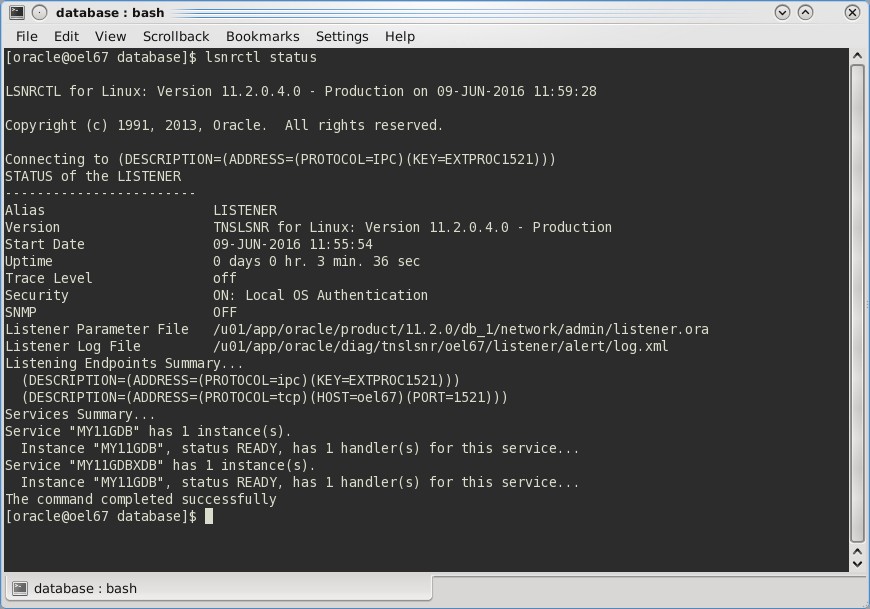
On occasion, this may not work properly. Before sending me an email reminding me of my imperfections, you may first want to try:
sqlplus / as sysdba

startup

exit
And then either log out and back in or (preferably) reboot the server and try again. This generally fixed it for me while coming up with these steps.
Downloads
The scripts described here are available at https://drive.google.com/folderview?id=0B1L4vdibbjSXeUJ5Q0pURExfbXc&usp=sharing
One More Thing
I found installing sqldeveloper to be a great way to do more through testing. At the time of this writing it can be found at http://www.oracle.com/technetwork/developer-tools/sql-developer/downloads/index.html.
If you found this interesting, please share.